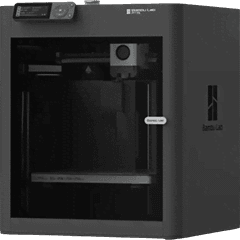
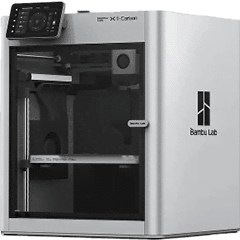
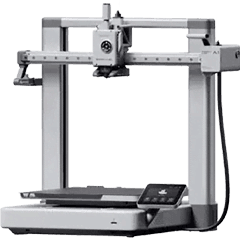
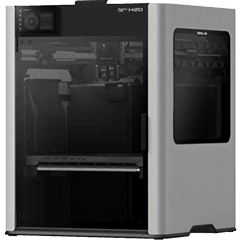
Supported Bambu Lab printers
A1 mini, A1, P1P, P1S, P2S, X1, X1 Carbon, X1E, H2S, H2D and H2D Pro connect over LAN. Each model has its own capabilities in Farmit: chamber sensor, lights, fans, skip objects and camera type, so the controls you see are the ones your printer really has.
What you see for every printer
- Print state, progress, layer and remaining time as the printer reports them, never a timer guess.
- Nozzle, bed and chamber temperatures, fans and lights.
- Every AMS tray with material, colour, remaining filament and humidity.
- HMS errors with their code, so you can look them up in the Bambu Lab wiki.
- A live camera view, up to a minute at a time, also through the gateway.
Starting prints safely
Upload the .gcode.3mf you sliced for each printer model. Before a plate is sent, Farmit checks that the file was prepared for that model, the printer is idle and online, the bed was confirmed clear, and the right material is loaded. It picks the AMS slot by material and colour and refuses to guess when two spools match.
A start counts as done only when the printer itself reports the print running. An unanswered start is never sent twice.
LAN Only and Developer Mode
Recent Bambu Lab firmware allows third-party LAN control only with Developer Mode on. Farmit needs LAN Only Mode, the printer's Access Code and serial number. The Access Code is entered on the gateway in your workshop and never leaves it.
Step-by-step setup is in the guide to Bambu Lab LAN mode.
Questions
Does it work without the Bambu cloud?
Yes. Farmit uses the printer's local network interface. The printer can stay in LAN Only Mode.
Can I keep using Bambu Studio?
Yes. You slice in Bambu Studio or OrcaSlicer as usual and upload the sliced file to Farmit, which sends it to the right printers.
How many Bambu printers can I connect?
One gateway connects every printer in its network. The Starter plan covers 2 printers, Pro up to 10, Farm has no limit.